
Find answers to common questions about our Management Tools, installation process, and technical support.
Everything you need to know about our products and services
Professional manual trading controllers for MetaTrader, enabling instant order execution, full position management, and advanced tools — trailing stop, breakeven, profit monitoring, and more — all in one compact interface designed for traders at every level.
Our trading panels require MetaTrader 4 or MetaTrader 5 platform installed on your computer. Starting from Windows 7 but For optimal performance, we recommend Windows 10 or later, at least 4GB RAM, and a stable internet connection. The panels work with any broker that supports the MT4/MT5 platforms.
Installation is straightforward:
Installation is straightforward:
The difference is only in interface, Some people prefer the classic over the modern one, but the options are not much different.
Yes, all purchases include Lifetime Updates but Major version upgrades may have a small upgrade fee.
Note that some features or buttons from previous versions may differ from those in the current versions or the upcomming ones, as our products are continuously updated. Rest assured that the latest updates are more efficient and improved compared to older versions.We provide comprehensive support via email for all our customers. We offer installation assistance, basic configuration help, and troubleshooting, we respond to all queries within 24 hours on business days.
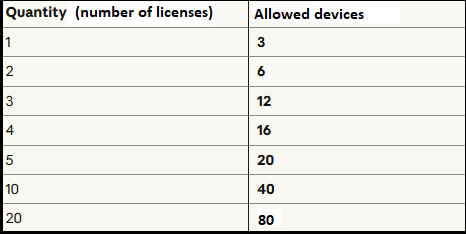
Each license allows installation on up to 3 devices, if you need to use the panel with more than 3 devices, you will need additional licenses.
Please check below the allowed number of devices for each license with special offers .
We accept credit/debit cards and PayPal. All payments are securely processed through Payhip or Gumroad to protect your financial information.
Gv1 is the full version with all advanced features (TP/SL for all symbols, chart tools, trend lines, profit display, and more).
Bv1 is a balanced version that keeps the most-used functions but stays lightweight for faster performance.
Sv1 is a simplified version — includes the essential controls for manual trading.
Yes, the panel works with any broker that supports standard MT4 or MT5 order operations.
No. DR-Panel is a manual trading control panel — it does not open trades automatically. It helps you execute and manage trades faster and with greater precision, but all decisions are made by you. It is not a signal service or automated trading robot.
Yes. It can recognize and manage existing trades opened by other EAs or manually. You can close, set TP/SL, or apply trailing stop to those trades directly from the panel.
The Breakeven feature automatically moves your stop loss to the entry level when your trade reaches a defined profit. The Trailing Stop dynamically follows the price, securing profits as the trade moves in your favor.
Yes, Bv1 and Gv1 Panels displays the live profit of the current symbol and the total basket profit across all open positions, making it easier to manage multiple trades at once.
Yes, the panel can be moved anywhere on the chart and its position is usually saved for that symbol. You can keep it compact or minimized based on your preference.
Not all versions require a DLL file. Some do, while others don't. Please check the contents of your downloaded package — if it includes a DLL file, make sure to use it.
Absolutely. The interface is designed for both beginners and experienced traders. All key trading functions are available with one click, without complex configurations.
Each license allows installation on up to 3 devices, if you need to use the panel with more than 3 devices, you will need additional licenses.
Please check below the allowed number of devices for each license with special offers .
Make sure that the AutoTrading button on MetaTrader is enabled (green). If it’s disabled, the panel cannot execute any trade commands. Make sure that the market is open. Also check that “Allow live trading” is enabled in the EA settings.
This can happen if your broker’s server is busy or the trade context is locked. Wait a few seconds and try again. If the issue persists, check the Experts and Journal tabs in MetaTrader for specific error messages.
Each panel instance is linked to the chart it was loaded on. Make sure the EA is attached to the correct symbol and timeframe. If needed, remove and reload the panel on the correct chart.
This is usually caused by a paused chart or disabled DLL imports. Refresh the chart (press F8 → Common → Enable “Allow DLL imports”). Also make sure your platform is connected to the broker (check the connection status in the bottom right corner).
Change the chart zoom or switch to another chart theme. Some custom MetaTrader skins or scaling settings can slightly affect the panel layout. Reattaching the EA usually fixes this issue.
This is a normal MetaTrader warning that occurs when multiple actions happen at once (for example, an EA opening trades while you click manually). Wait a few seconds and repeat the action once the terminal is free.
Check that you have entered valid SL/TP values before placing the order. Some brokers have minimum distance limits from the current price. Try increasing the TP/SL distance slightly or use the “TP HL” and “SL HL” buttons to set them automatically.
Pending orders only trigger when price reaches the specified level. Verify that your Buy Limit, Sell Limit, Buy Stop, or Sell Stop prices are correctly set relative to the current price and broker rules.
Make sure you have entered a valid value (in points or pips) for Breakeven and Trailing Stop before enabling them. The trade must first move into profit before these features begin to work automatically.
By default, MetaTrader doesn’t automatically reload custom EAs after restart. You can reattach the panel, and don't change the product name ever.
This usually means that there are no active trades or pending orders related to that function. For example, “Close Buy” will remain inactive until you have at least one open Buy order.
The panel might be hidden behind the chart or placed off-screen. Try resetting the chart view (right-click → Indicators List → select the EA → “Edit” → uncheck and recheck “Allow DLL imports”) or reload the EA to refresh its display position.
Make sure all required permissions are enabled: “Allow live trading” and “Allow DLL imports.” If the problem persists, delete the EA from the chart, restart MetaTrader, reattach it again and don't change the product name ever.
• Make sure the required DLL file is placed inside the "Libraries" folder of your MetaTrader installation. If it's missing, re-download the full package.
• Check that "Allow DLL imports" is enabled in the EA settings. Without this permission, the panel cannot access external functions.
• If you're using antivirus software, ensure it hasn't quarantined or blocked the DLL. Add an exception if needed.
Just wait some seconds and refresh the page. This issue is usually caused by a temporary delay in price updates between pages. If it persists, clear your browser's cache or try a different browser. Contact support if the problem continues with a screenshot of both pages showing the discrepancy.
Make sure you copied the Order ID correctly (it is case sensitive).
Please check:
If the issue remains unresolved, please contact our support team. Include your MetaTrader version, broker name, and a screenshot of the problem so we can help you quickly.
Can't find the answer you're looking for? Our support team is here to help you get the most out of our trading solutions.
Contact Support